
Homeowner’s handbook
45 The Point Road
Woolwich, Sydney
Set up the Loxone app, then explore the controls in each room.
Get startedGetting started
Set up the Loxone app
 Download Loxone for iPhone or iPad
Join the home Wi-Fi
Sit with the handover team, connect your phone to the home Wi-Fi and open the Loxone app. On the wall tablet, use the home already set up.
Open your home
Select your home if it is listed. If it is missing, choose Add Miniserver. Select the home found on Wi-Fi, or use Add manually with the connection details supplied privately by Integratd.
Sign in and try the lights
Enter your own household username and password. Tap Rooms, choose Kitchen and open the lighting control. Try Bench Lights, then restore the setting. You now know the path to the other room controls.
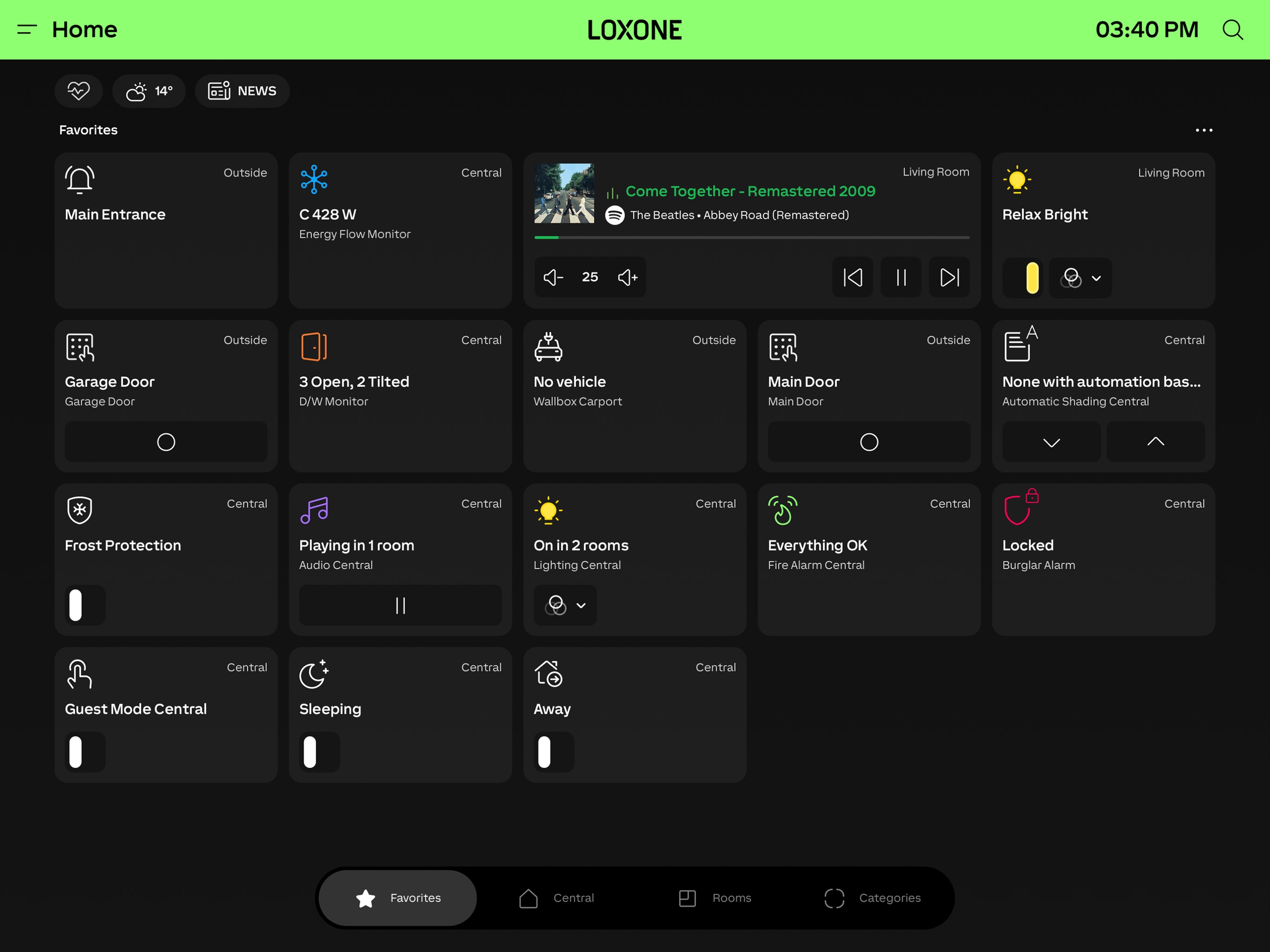
Throughout this handbook, the iPad images are Loxone’s official app examples. At Woolwich, your room names, favourites and available controls depend on your account.
Everyday controls
What would you like to do?
Rooms / Kitchen / Lighting
Choose the light you need
Choose the room
Tap Rooms and open the room you want to change. In Kitchen, open the lighting control.
Choose a mood
Tap Bench Lights to light the worktop, or Bright for more light. A mood is a saved combination of lights. If an individual light has a slider, drag it to dim.
Switch off
Choose Off in that room. Presence sensors can bring the lights back on when the room is in use.
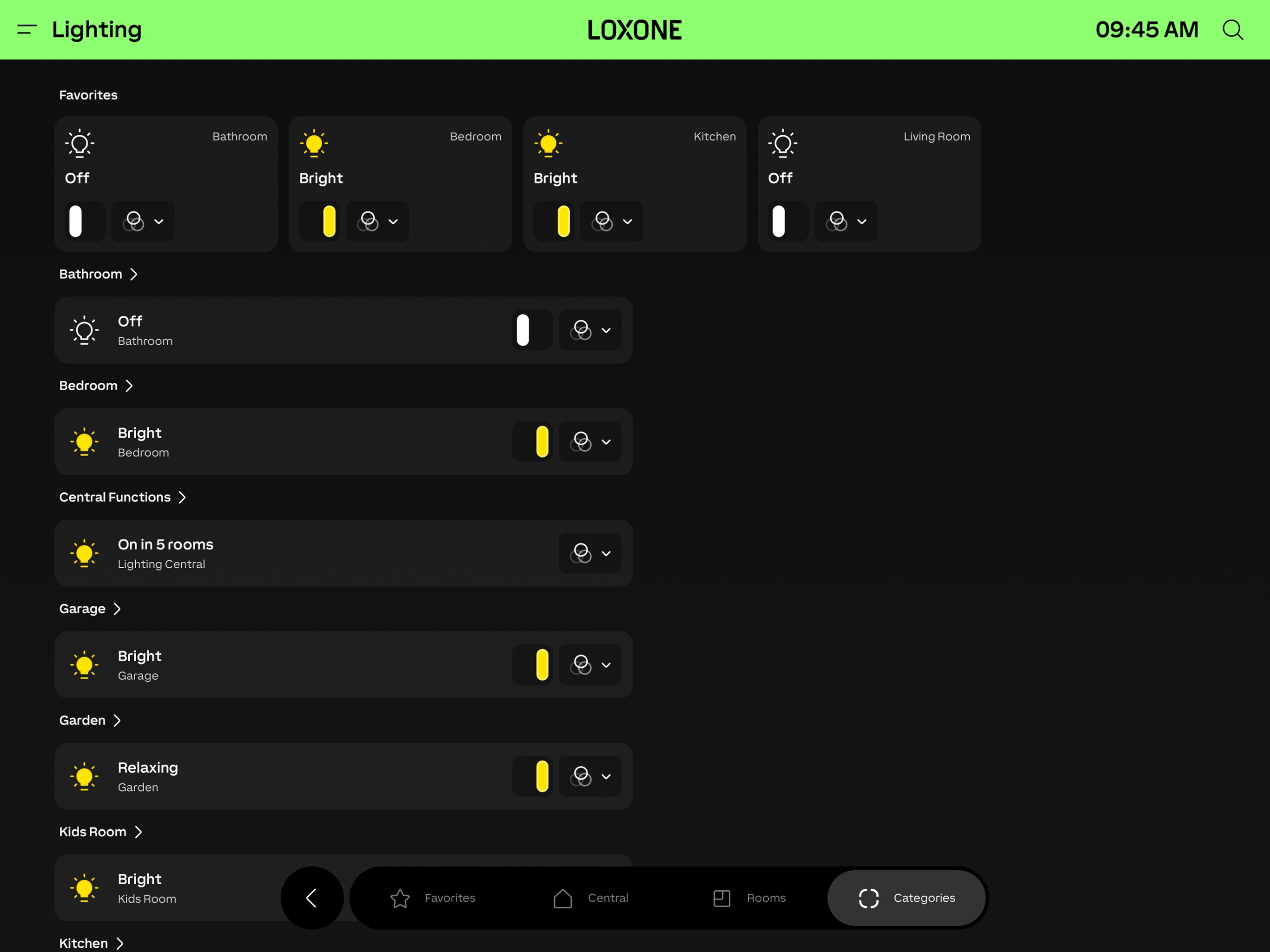
In Dining Room, try Chandelier. In Third Floor Hallway, choose Wall Lights or Chandelier. The outdoor circuit has a separate schedule.
At the wall
Read the engraved keys
Each white switch is labelled for its room. These two examples show how the same key position can do different things.
Kitchen
Use the middle column for the kitchen blinds. Use the right column for music. For a single window, choose its name in the app.
Open blindsTap once to open the kitchen blinds together.
Key positions on the white Flex. Labels explain the engraved symbols. Select a key to see its action.
On the Family Room switch, the light and music keys control the Family Room. Its blind and temperature keys control the Kitchen.
Find your room
Choose a floor, tap your room, then pick what you want to use.
Second floor
Tap a roomRoom controls
Kitchen
Tap Bench Lights to light the kitchen bench. Tap Off to turn them off.
More about this room
For bench lighting, choose Bench Lights. To move only the blind above the bench, select Bench Blind. Kitchen Shading moves all four kitchen blinds together.
Whole House
Leaving, bedtime and company
AwayLast person leaving
How to start
Rooms → Whole House → Away. Close doors and windows, make sure everyone is out, then select Away and check Burglar Alarm for the armed status.
What happens
Central lights and music turn off, temperature overrides reset and shading returns to automatic. Presence simulation begins and the alarm starts its arming delay.
When you’re finished
On return, use the disarm procedure demonstrated to you. Check the alarm status and switch Away off in Whole House.
NightPutting the home to bed
How to start
Select Night in Whole House. Three quick taps on the main lighting key in either bedroom also start Night and that bedroom’s Goodnight.
What happens
Central lights and music turn off. Overnight movement uses night lighting where set up, and the bedroom air conditioning is asked to run quietly.
When you’re finished
Use Deactivate Night to end it. A bedroom wake-up alarm can also end Night. The daily reset is at 8 am when Away is off.
PartyHaving people over
How to start
Select Party in Whole House. Choose your music separately in a room’s audio player.
What happens
The lights turn on and 12 indoor audio players receive a 60% volume setting. Check the level before starting your music.
When you’re finished
Switch Party off in Whole House when you finish. Adjust room lighting and volume to suit. Leaving House also clears the mode.
StudyYou want quiet
How to start
Select Study in Whole House.
What happens
Presence uses the Study lighting mood where configured and stops automatically starting music. If music is already playing, pause it in the room’s player.
When you’re finished
Switch Study off in Whole House to resume normal presence behaviour. Leaving House also clears the mode.
When do the outside lights come on?
Lighting Central Outdoor brings on the two exterior wall-light controls and the third-floor front and rear balcony lights from 5 pm to 10 pm daily. You can change an individual light in its room.
For one bedroom only, open that bedroom and select Goodnight. A triple tap on its lighting key also puts the whole house into Night.
Owner access
People & devices
Add a household member
Sign in as a household administrator. In the app menu open User Management and create a user. Enter their name, assign the agreed group, set their sign-in details and save.
Check their access
Have them sign in on their own device. Open a room they should control. For a guest, select only the access they need and remove it when their stay ends.
Using the app away from home
While still with the handover team, turn off Wi-Fi on your phone and try opening the home over mobile data. If it does not connect, turn Wi-Fi back on and ask Integratd to check remote access.
Integratd Living
Help with your home
Tell us the room, the control you used and what happened. For an app issue, include a screenshot with personal details hidden.